
Steps to Make the Most Out of Your Wacom Tablet
This article was written by one of our amazing contributors! Content may include promotional links.
Graphic designers, photographers, and other artists need a tablet these days. It has become one of the most important accessories. In fact, some people could not imagine doing their job without one.
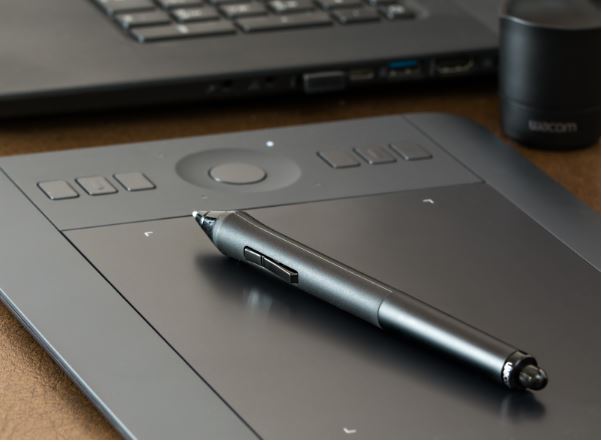
Wacom tablets are one of the best in the market. You would not go wrong with picking one for yourself if you are looking for a tablet. The advantages that stand out the most are the pressure-sensitive screen as well as the fine-point pen.
Of course, it is worth mentioning that if you decide to go with Wacom, the learning curve can prove to be quite steep for some. Skills come with experience, and you should not feel too bad if everything is not working out at first. Take the steps mentioned below, and you will have a decent understanding of what the tablet is about.
Step #1 – Program the Pen
It is clear that you will be using the pen a lot. So starting with its optimization is a good approach. When you install the tablet software, you should see all kinds of optimization settings.
If there are problems with the application when you launch it, it might be that something went wrong during the installation process. You will need to remove this app and reinstall it. Doing so usually fixes the issue.
Launch the Wacom tablet settings tab and click on the Grip Pen. You are free to pick preferable sensitivity or pressure. Modifying double click distance is also an option.
As one expects, different people will have different preferences. As you use the tablet more and grow accustomed to it, you can look to tinker with the settings along the way before you find the best setup.
Step #2 – Return the Pen to the Pen Stand

Get in the habit of leaving the tablet pen where it belongs – in the pen stand. You will be surprised by how many times some people find holding the tablet pen in their hands without realizing it. As such, it leads to quite a few graphic designers losing the pen with no way of finding it.
One might think that it is not that big of a deal. However, a replacement pen costs up to 100 dollars. Estimate how much it would cost to replace the pen multiple times.
Step #3 – Use Express Key
Another big plus of Wacom tablets is the array of buttons along their left edges. While not every user will need to use these buttons, some of them can still come in handy.
It is another feature that allows you to customize your work. Think of ExpressKeys as shortcuts. Similar to how you create commands using a computer keyboard, you will be able to increase efficiency by assigning different functions. Some of the best and most popular examples include the Display Toggle, Precision Mode, and Pan/Scroll.
Step #4 – Find Replacement Nibs
People who are not too familiar with Wacom tablets could potentially miss out on replacement mints. They are located inside the pen stand. And most tablets will provide you with around ten different nibs as well as a removal tool.
Once again, it is something that you will need to discover on your own and decide which nibs are appropriate for certain situations.
Step #5 – Open Express View

Having too much on your plate in terms of features and available functions means that it can become too hard to remember certain things. Express View is something that you can open and use as a reminder in case you need to brush up on your knowledge. The Express View can be launched by putting your finger on the button and waiting for an overlay to appear.
Step #6 – Act Natural When Using the Tablet
Wacom tablets have a design that makes users feel as natural as possible. Think of the tablet as a piece of paper and a regular pen or pencil. You do not have to move your hand awkwardly just because it is a device that represents working on a computer. Also, do not be afraid to rest your hand on the tablet when you need to. It is sturdy and will not react if the pen is away from the screen.
Step #7 – Take Your Time to Learn

Just like mentioned at the beginning of an article, it will take time to learn using your new Wacom tablet. But the process is natural, and you should not force things. If you find that you are having issues in terms of technical usage, it might be that the fault lies in the computer. Take proper care of it. There are hardly any instances when a new tablet is a problem. And continue to learn and adjust your work habits to a Wacom tablet, because once you do, things will become much better.