

How to Fix Frozen iPhone Screen
This article was written by one of our amazing contributors! Content may include promotional links.
If you are an iPhone user and a hardcore Apple loyalist, no one can convince you to switch, and that is totally understandable. Unfortunately, iPhone users are mocked time and again for the annoying issues that is genius little gadget ends up with leaving its user clueless most of the time. Imagine your screen freezing in the middle of an important network game, or your gadget going unresponsive just when you are trying to navigate to find your way to your destination. Although such situations are pretty common with smartphone users, Android is much simpler to play around compared to iPhone. Recently, Samsung made a whole advertisement that was focused on taking a dig at Apple users for the same reasons – gadget freezing suddenly and user does not know what to do? Dr. Fone is your much awaited savior if you ever end up with your iPhone screen frozen.
Why Did Your iPhone Freeze?
IPhone freeze is a fairly common problem but it can become a nuisance. There are a number of possible reasons why your gadget became irresponsive suddenly. It is possible that you have too much data on your phone and your memory is not sufficient for your phone to function properly. Other reasons may include an interruption in jailbreak process, a software update gone wrong or interrupted in between, corrupted apps or malware attacks, a lot of apps running on the device at the same time, or your gadget being stuck in the restart loop.
Other than these reasons, there is a possibility that the phone has frozen because of a hardware damage. In that case the only solution would be a hardware repair. However, this guide focuses on solving the problem if the root cause is a software related issue.
How to Solve an iPhone Freeze Issue
Before going to the hardcore solutions, it is always better to see if the problem can be solved by playing around with problematic apps. If your phone is creating issues only while using a particular app, simply press the home button twice and swipe up the app to close it forcefully. This is likely to solve the issue. Likewise, if the phone is frozen due to too many apps running in the background, you can use the same method and swipe up all the apps to force-stop them.
At times, phones also freeze because the apps are corrupted. To solve this, open your App Store and tap the “update-all” button. This will update all the apps and will remove any bugs that might be causing an issue. Alternatively, you can also try deleting the app and then reinstalling it.
Unfortunately, there is a possibility that all the basic solutions might fail. In extreme cases, your home button will be as unresponsive as your touchscreen. In this case, a professional tools such as Dr. Fone is your best bet. Dr. Fone will automatically remove any problematic bugs in your phone without harming your data and will update your phone to the latest most suitable iOS version.
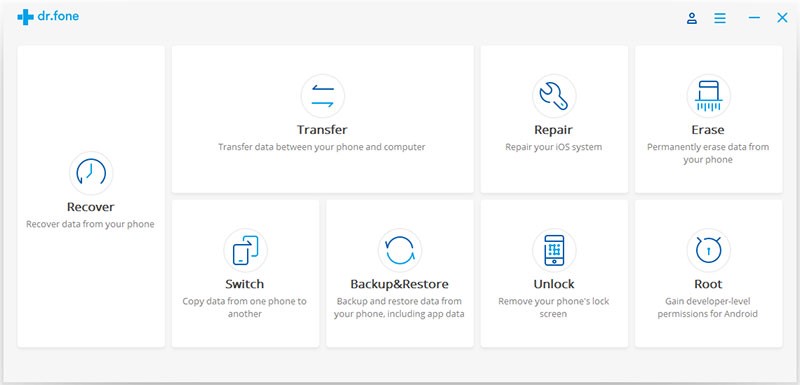
To fix your phone using Dr. Fone, install the app on your PC or Mac and run the application. Select the “Repair” option and then click start from the next screen.
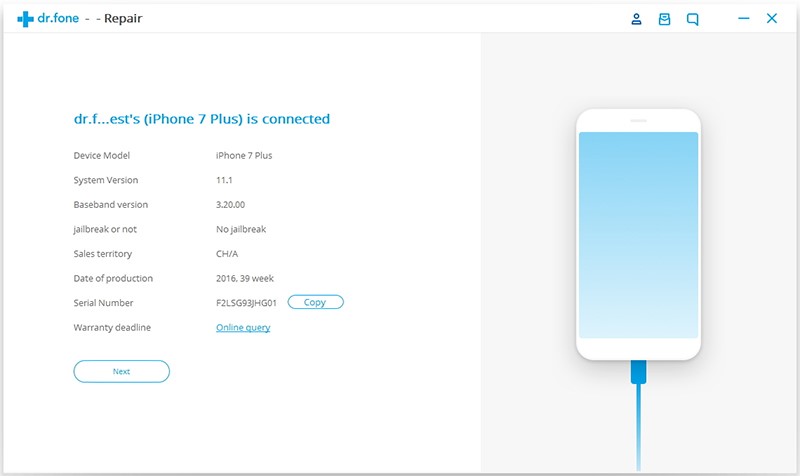
Once you will click START, the app will auto detect your phone and will list its details. Copy the serial number from this screen before you hit NEXT.
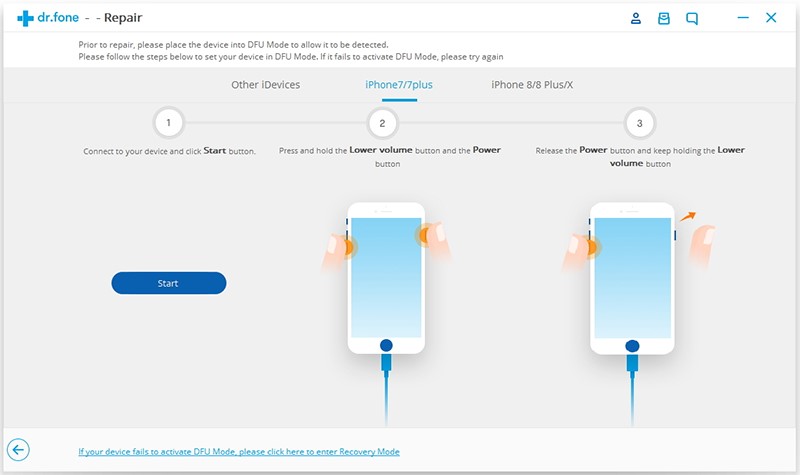
Next, reboot your device in the DFU mode. You can follow the instructions given on the screen to do so. After entering the DFU mode, the app will ask you to fill in the details regarding your gadget. Fill in the correct information and hit DOWNLOAD.
Once you hit the download button, the app will start downloading the latest firmware that is best suited for your gadget. This will take some time so be patient and make sure that you have stable internet connectivity. After the firmware download is completed, a pop up window will notify you. In this window, check the “retain native data” option and hit FIX NOW. The application will remove any bugs and will restore your phone back to its normal condition.